

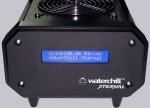
The installation of the Asetek WaterChill Control Panel USB software and drivers …
It’s time to install the provided software, which should be installed before plug in the USB cable to install the drivers immediately. Here’s a small step by step guide how to install the software. If you already know how to install the software, it’s possible to skip the installation guide with this link.
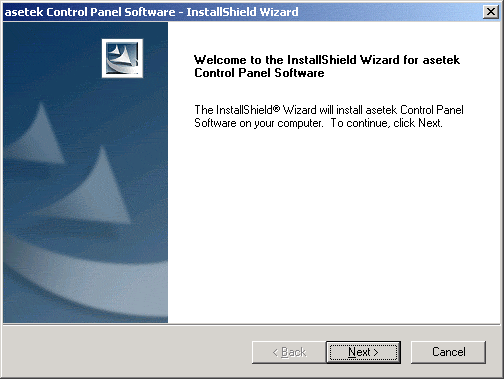
Here’s the small installation guide. The software is btw also available on the Asetek support page and should be downloaded in the newest version. Go on with the Software installation by a click to the “Next” Button …
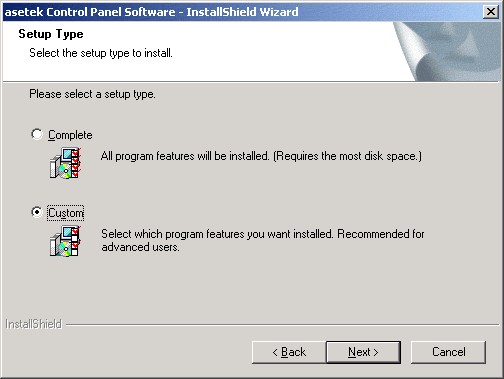
Now we get to the choice of the installation type. I would recommend to select the option “Custom”, because it’s not necessary to install all parts of the software.
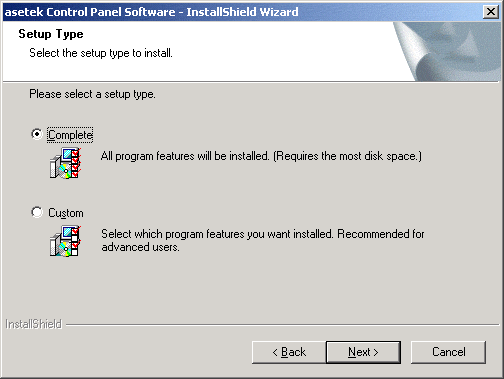
Select Custom and click on Next.
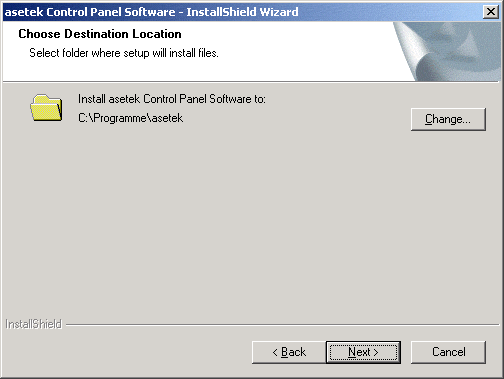
Select the desired destination folder by “Change” and confirm it with Next.
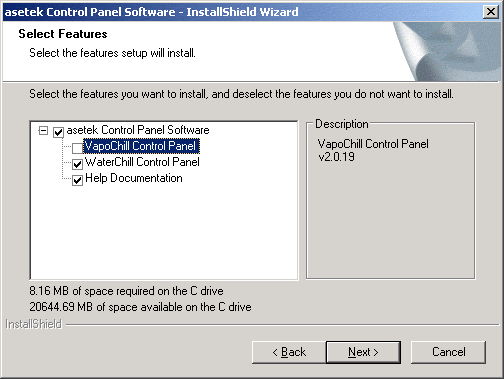
Here we can deactivate the point “VapoChill Control Panel” because it’s useless. Then press Next (or Alt-N).
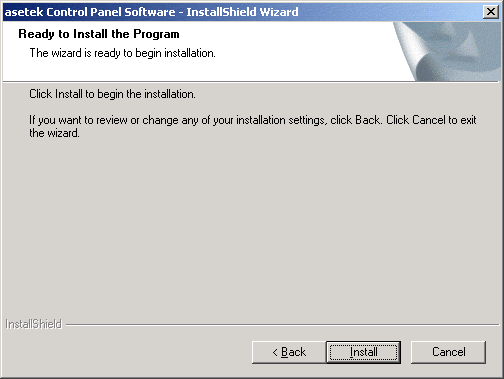
Now click once again on “Install”.
No, don’t click Cancel 😉
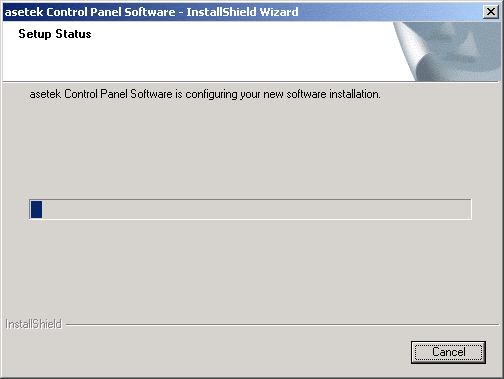
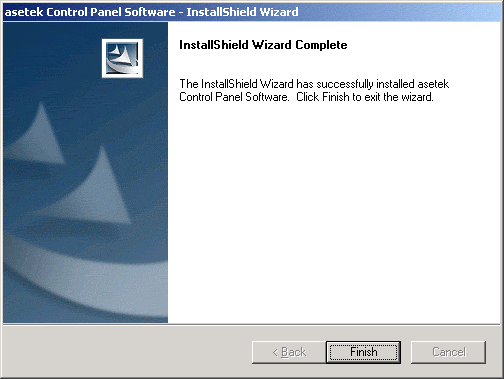
But rather “Finish” and that’s it. On the Desktop and in the start menu is now a shortcut to the program and a guide. Now we can put in the USB plug of the Waterchill Xternal to install the USB driver.
The Configuration of the Asetek WaterChill Control Panel USB Software …
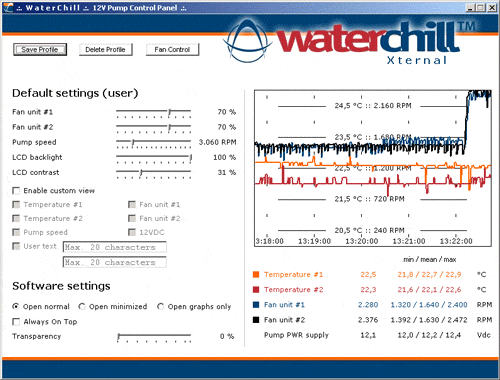
This is the USB control panel of the WaterChill Xternal water cooling unit. The software is quite simple to handle and offers beside the adjustment of the fans and pump speed, also the possibility to store own profiles, which can be selected very easy in the Windows Tasktray near the clock. For example one quiet working environment and another High-End profile with high-speed fans for Games. In the left range of the window is the manual selection of the fan rotation, pump speed, LCD brightness & contrast, custom view and name assignment on the display and the start type of this software. Within the right is a diagram with all current data and among them the respective values are shown.
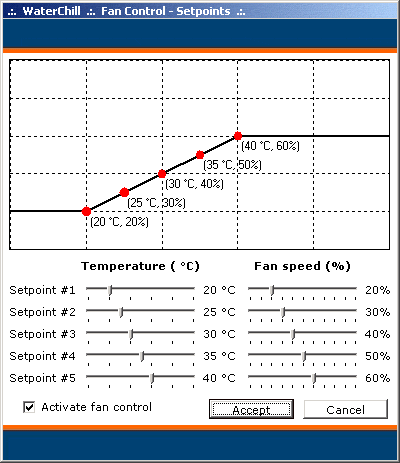
The “Fan Control” Button opens a small windows with some more options. Here’s are options to control all four radiator fans by temperature.
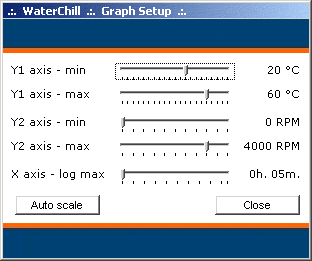
Another Hint is shown when you right click the temperature diagram to adjust it easily.
All in all a very useful and simple to handle software, but nevertheless with a lot of options to adjust the WaterChill optimally. However I’ve noticed that the software reacts partially somewhat slowly and sometimes the values are only accepted with a restart of the software. But I’m sure Asetek will fix all small bugs very soon.
The operation of the Asetek Waterchill Xternal Water Cooler …