

Practical testing …
Once unpacked, the camera is ready to use right away. The camera was recognized immediately on both Windows and macOS and was ready to use without the need to install any additional software or drivers.
Setup …
The magnetic mount can be quickly attached to the top edge of the monitor.
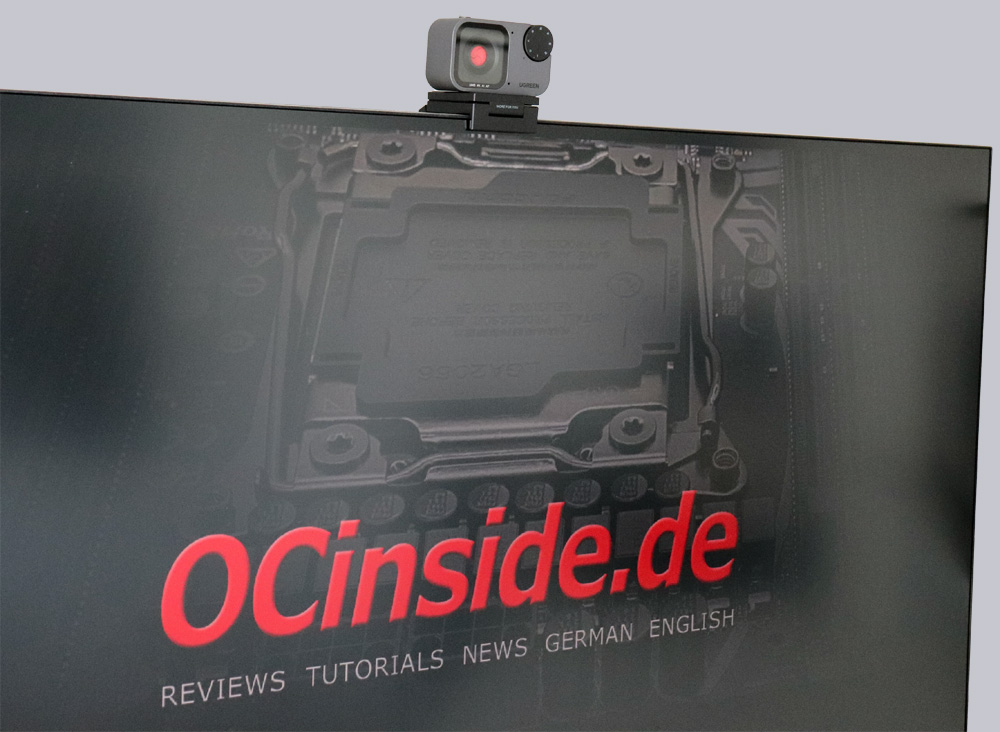
The parts move and adjust easily, but offer enough resistance to hold the camera securely in place.
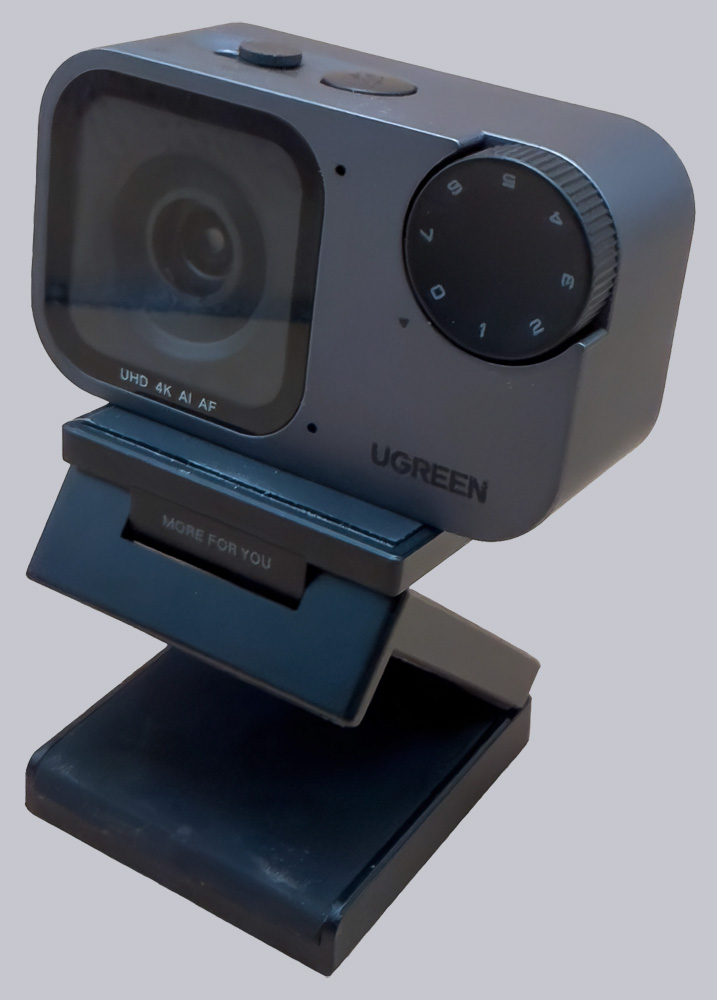
At 2 meters, the USB cable is quite long, which is certainly helpful if the computer is positioned a little way from the monitor. However, if you’re using a laptop, the cable will likely get in the way. Especially since, unfortunately, the cable isn’t very flexible. Since there aren’t any major requirements for the data cable, though, you can easily replace it with a shorter, more flexible one.
The tripod works just as well, but it’s very light and compact, and can be extended a little further.
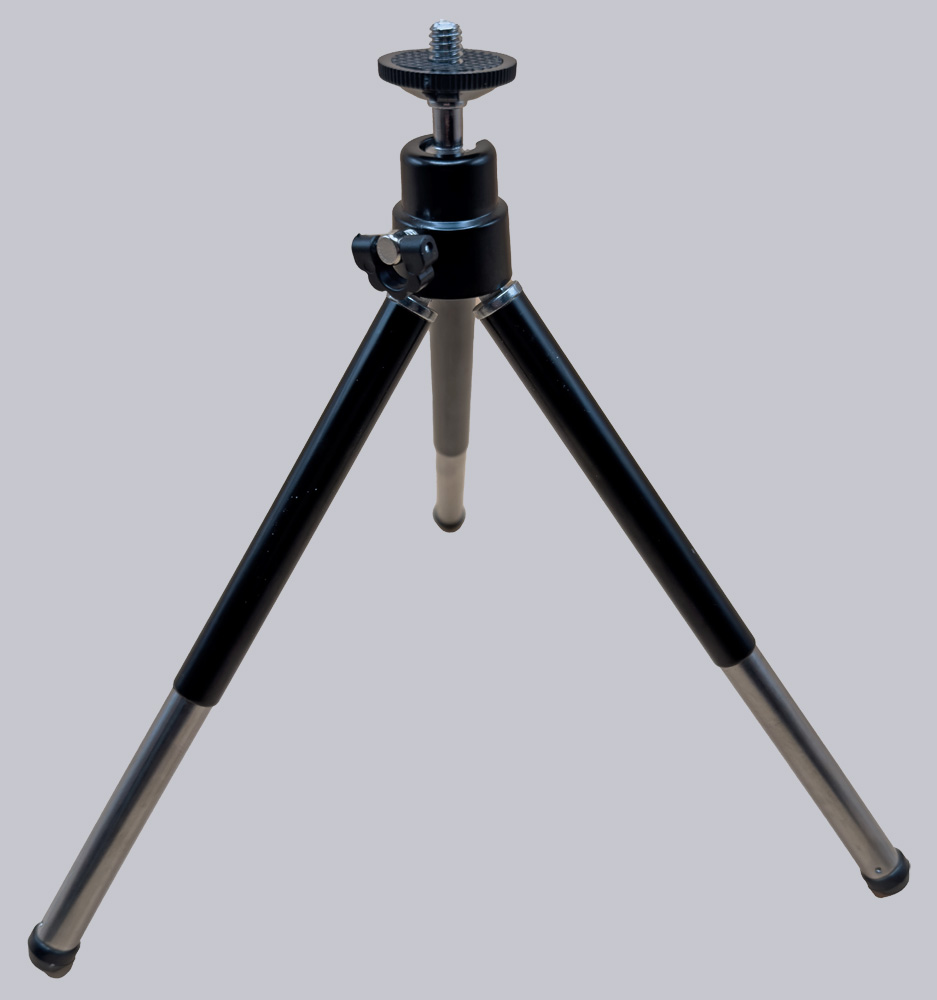
But it’s more than enough for this camera, which is also small and lightweight.
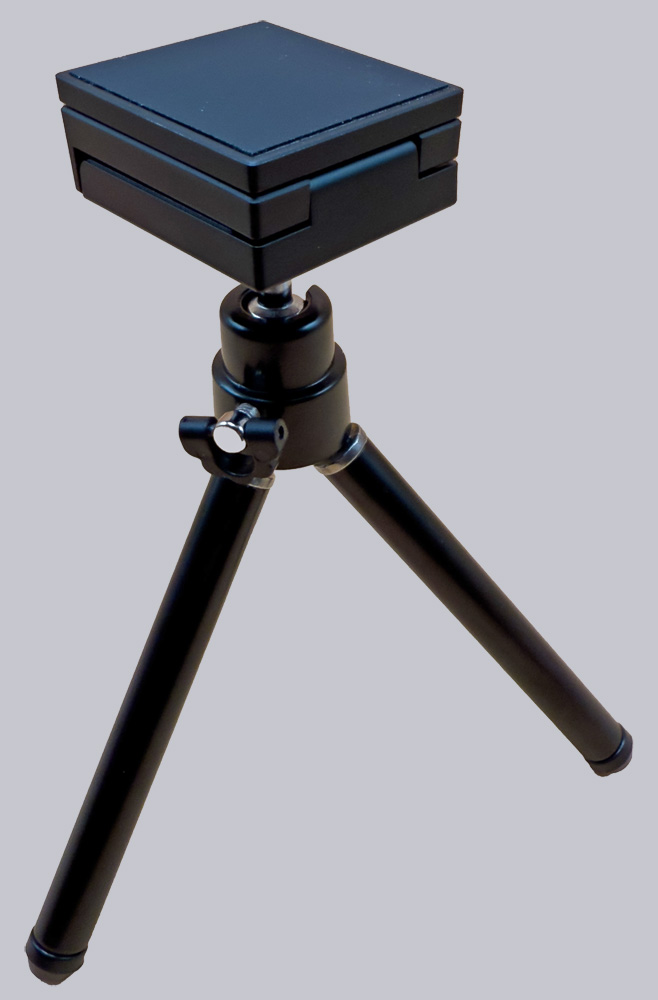
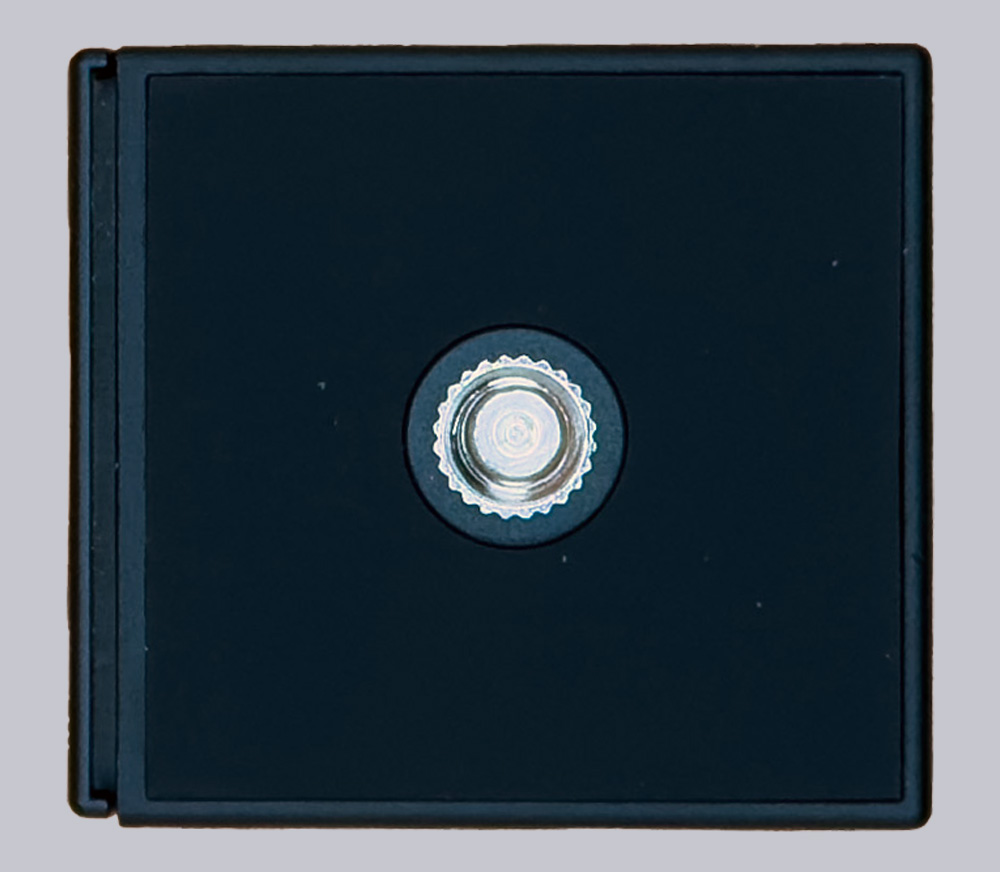
Thanks to the standardized 1/4″ mount, the camera can also be easily attached to a magic arm, for example, using the magnetic mount.
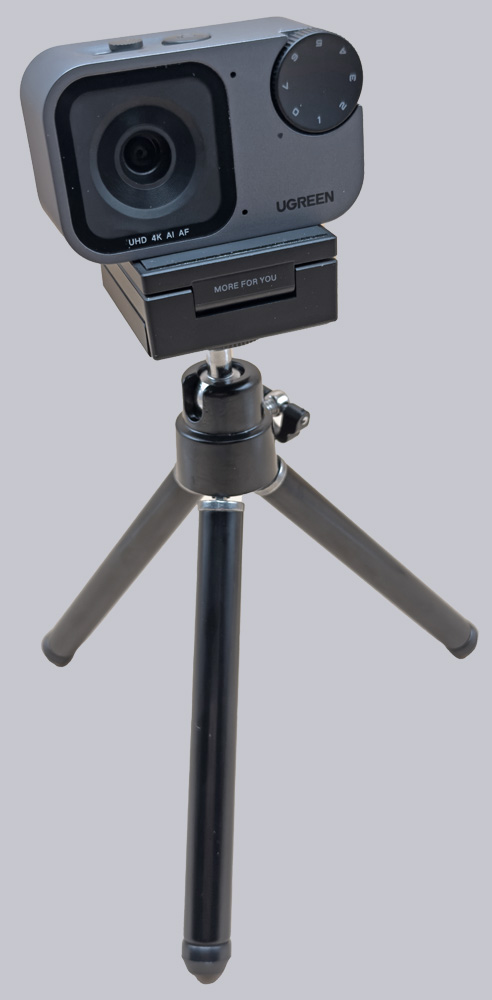
And this is what it looks like when you attach the webcam to the magnetic mount.
Camera settings …
Ugreen relies entirely on automation via gesture control here. There is (at least for now) no app that allows you to adjust the camera settings. That’s a bit of a shame, because basic settings like white balance, brightness, and contrast can’t be adjusted this way. Here, the user is dependent on the software used with the camera, which, however, often still offers customization options.
The mode dial on the front of the camera offers 8 different image modes. From “natural” to black-and-white, sepia, and various color profiles, you can adjust the image here. However, this is no substitute for direct control over the image.
Using a button on the top, you can switch the camera from the standard landscape orientation to portrait orientation. This is actually handy if you’re not just participating in video conferences at your desk, but are using the camera to actively give a presentation and don’t want to be captured in profile.
Gesture control …
The camera recognizes two gestures that can be used to control it while in use. To select one of the two zoom levels, hold your hand in the camera’s field of view, touch your thumb and index finger together, and then move the two fingers apart. This switches the camera between wide-angle and zoom views. However, the image resolution is reduced from 4K to 2K because this is a digital zoom rather than an optical one.
The second gesture activates tracking mode. Here, too, the view switches to a 2K frame. However, the camera automatically adjusts this frame to keep the speaker in the shot. This works quite well, though with a slight delay. So you shouldn’t move too quickly. The range within which the camera can track the subject is also limited, since the camera isn’t actively panning. (Image source: Ugreen).

Ugreen FineCam Pro 4K Webcam Result and general impression …