

ASRock Polychrome Display …
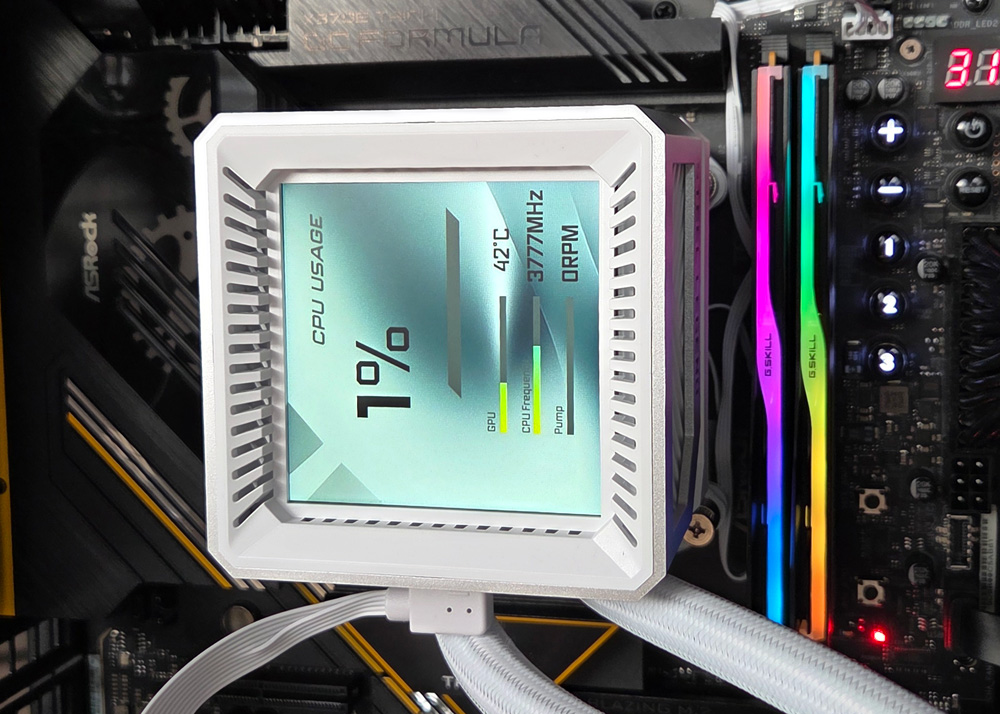
In the download section of the ASRock Steel Legend LCD water cooling product page, you’ll find not only the familiar Polychrome RGB software for controlling RGB components but also the new Polychrome Display software for configuring the Steel Legend LCD water cooling display. It’s available as a free download for Windows 10 and 11. The water cooling system can also be controlled using the open-source Signal RGB software. After the straightforward installation of Polychrome Display, launching the program takes us straight to the overview page, where current system data is presented in a modern interface. At the time of testing, there was an issue with detecting the pump speed, which is why it was displayed as 0 RPM. However, this bug should be fixed soon with a software update.
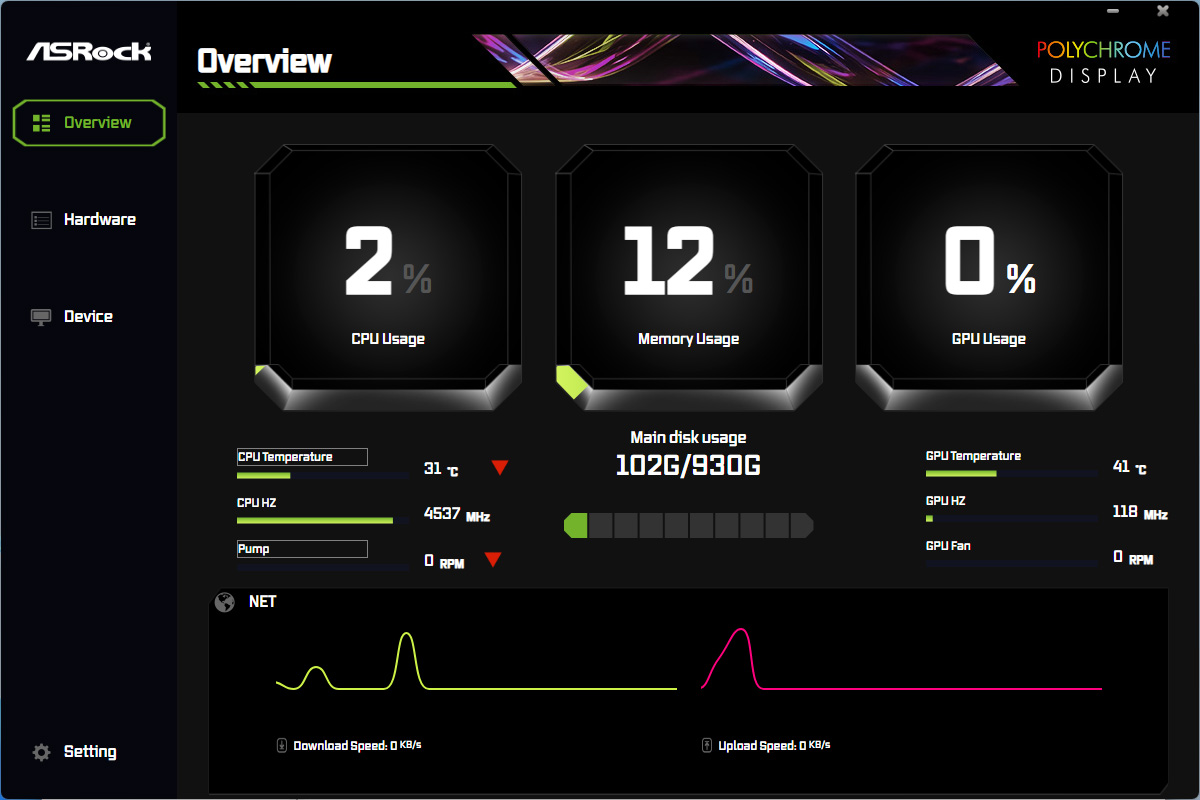
By default, the display shows CPU usage, CPU temperature, CPU clock speed, and pump speed in real time.
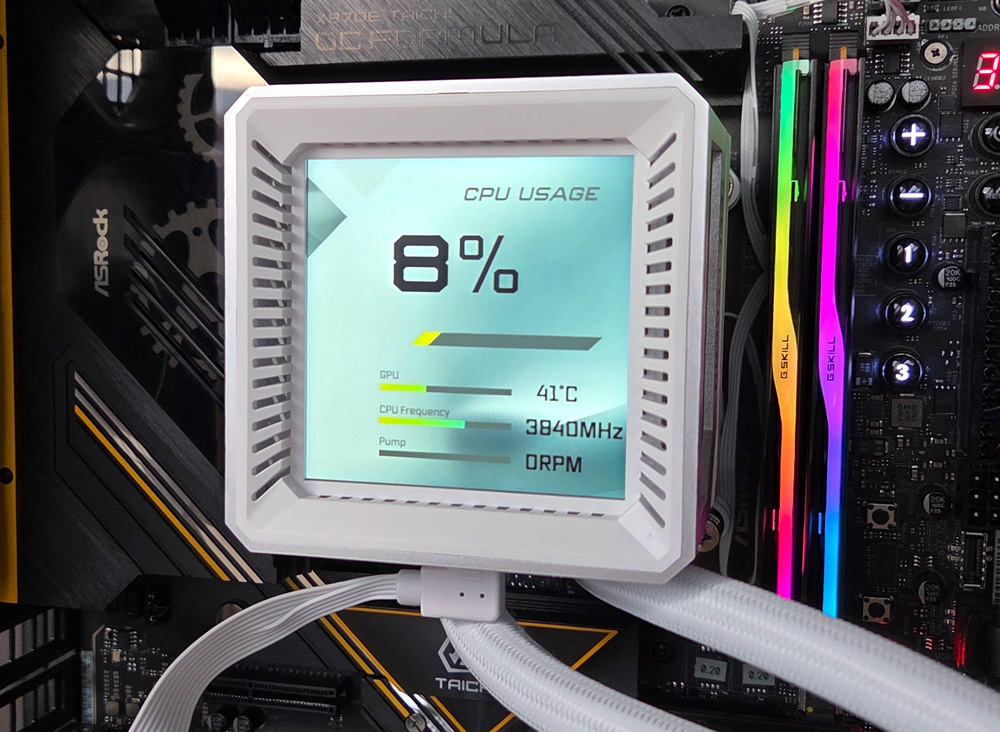
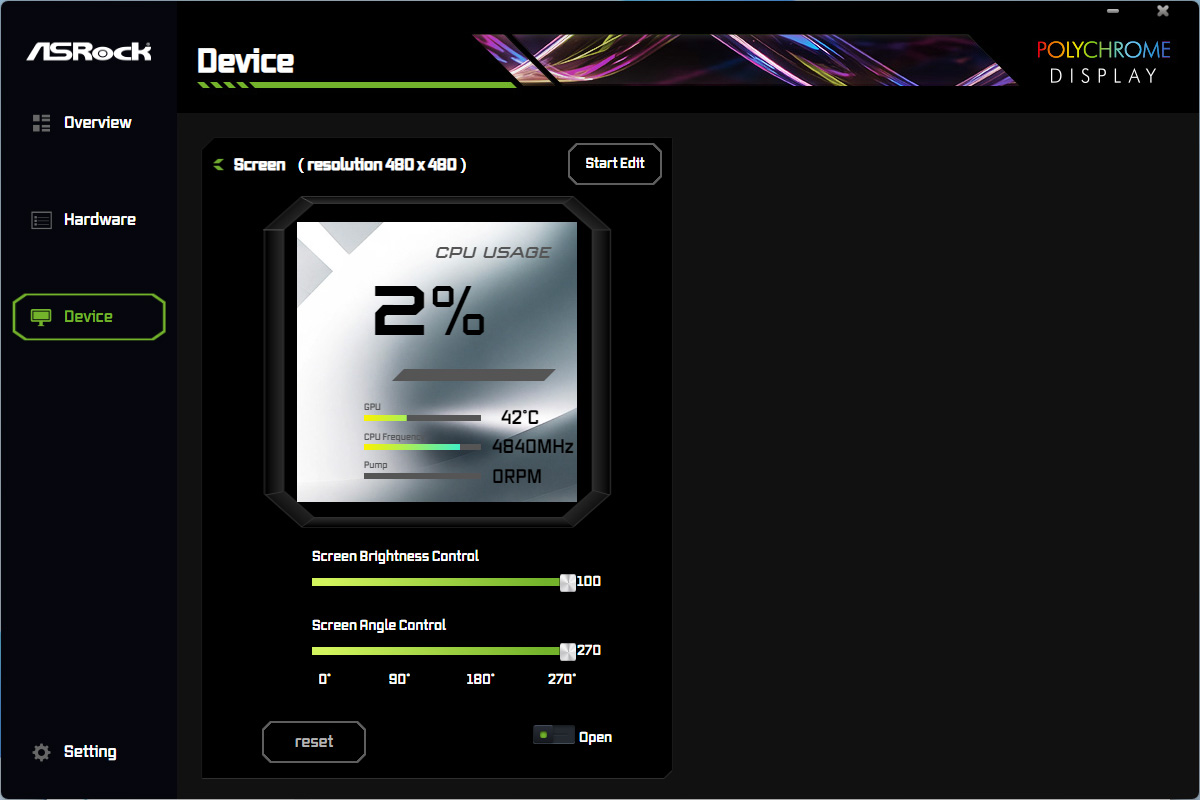
The Device menu contains controls for display brightness and screen rotation. With a single click, we set the viewing angle to 270°.
The display applies the change immediately.
The editor gives you access to several preconfigured designs, some of which are even animated. But you can also create designs entirely on your own.
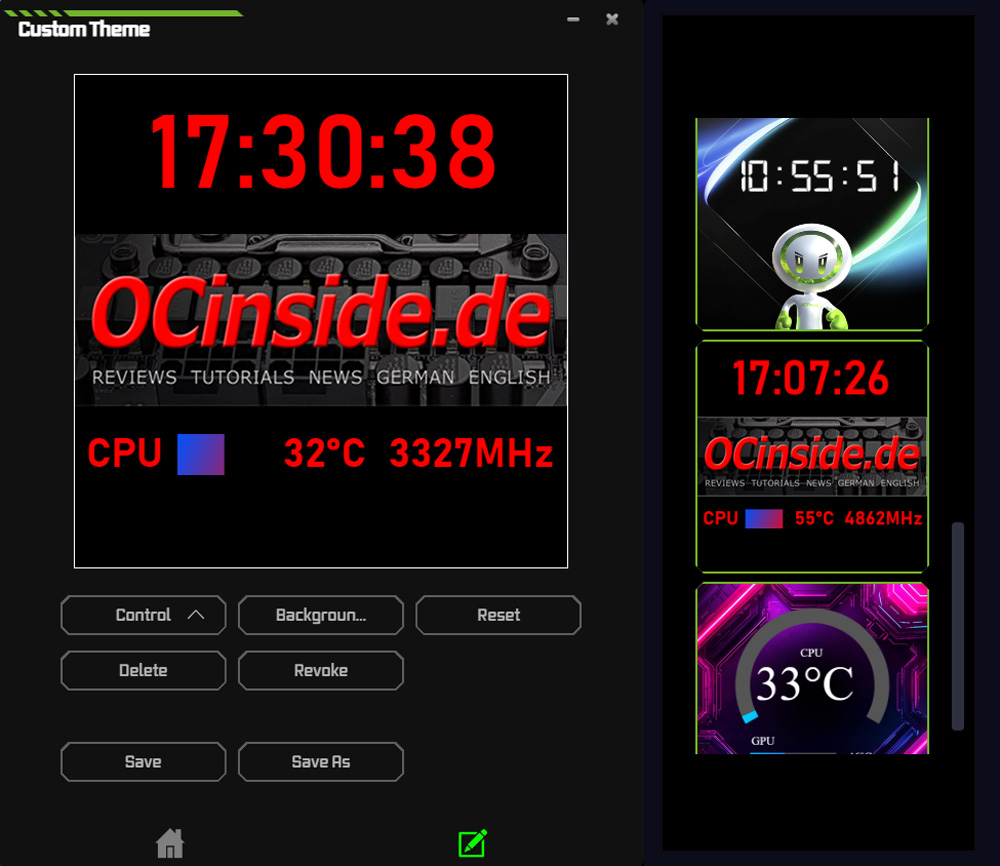
It took us less than 10 minutes to create the OCinside.de custom design. The options are extensive and include the display and visualization of a wide range of system data in the form of numerical values or graphs.
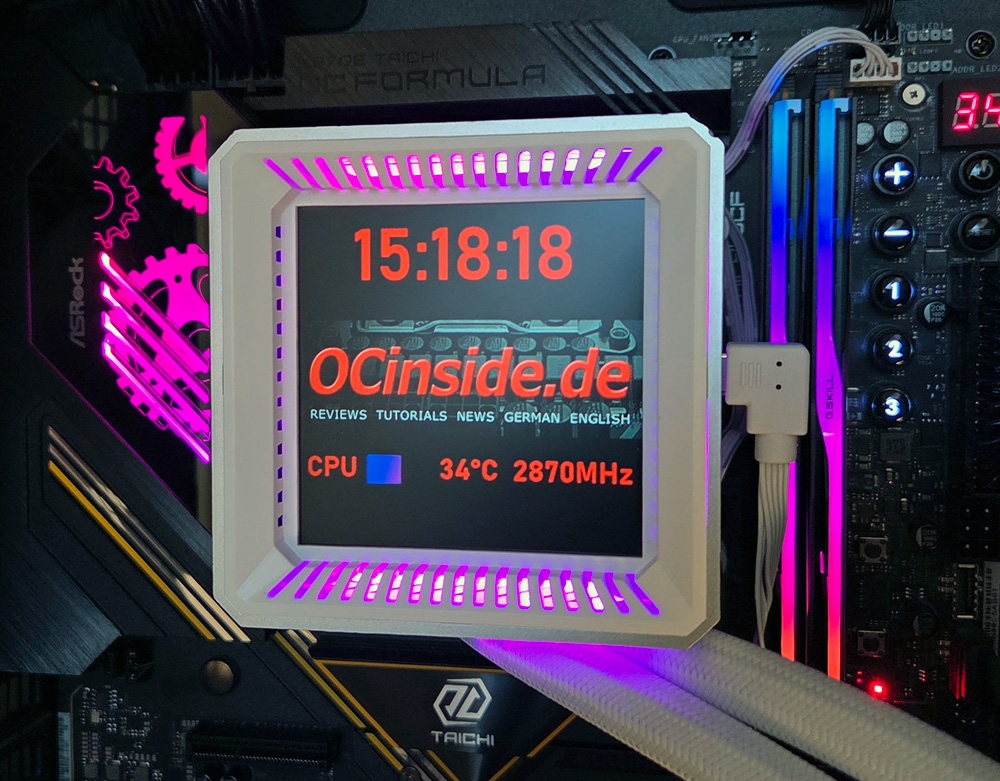
Now that we’ve successfully installed and configured the ASRock Steel Legend LCD water cooling system, we’ll take a look at how it performs in cooling our AMD CPU.
In the following ASRock Steel Legend 360 LCD video on our OCinside YouTube channel gives you an idea of the individual profiles, and we also have a general ASRock Polychrome RGB software video. Enjoy watching.
Note: Please allow our cookies first to see this external content!
ASRock Steel Legend 360 LCD Test setup and results …